Documents & Companies
All Filed Documents lists every document filed in any docket, and All Companies lists every registered company. Open a company in Company 360 to see its details, dockets, documents, contacts, managers and comments.
Signed-in Tier 1 and Tier 2 users. Tier 2 users manage the companies they registered or manage from My Companies; see My Items.
All Filed Documents
-
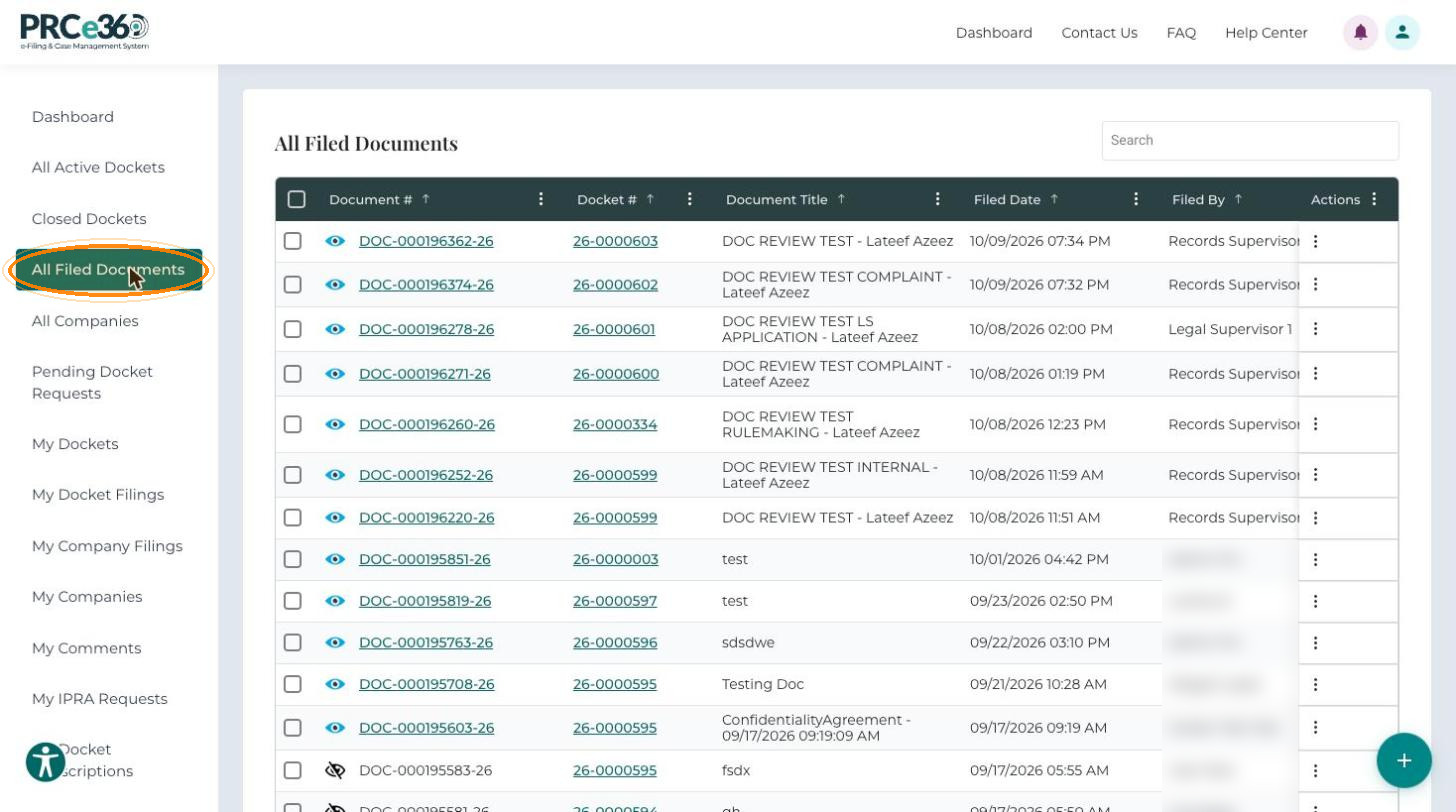
In the left menu, click All Filed Documents. The list shows every public document filed in any docket, newest first.
Columns- Document #
- Docket #
- Document Title
- Filed Date
- Filed By
- Company
- Company/Party(ies)
- Document Type
- Document Description
- Confidential
- Linked
- Document Role
- Actions
-
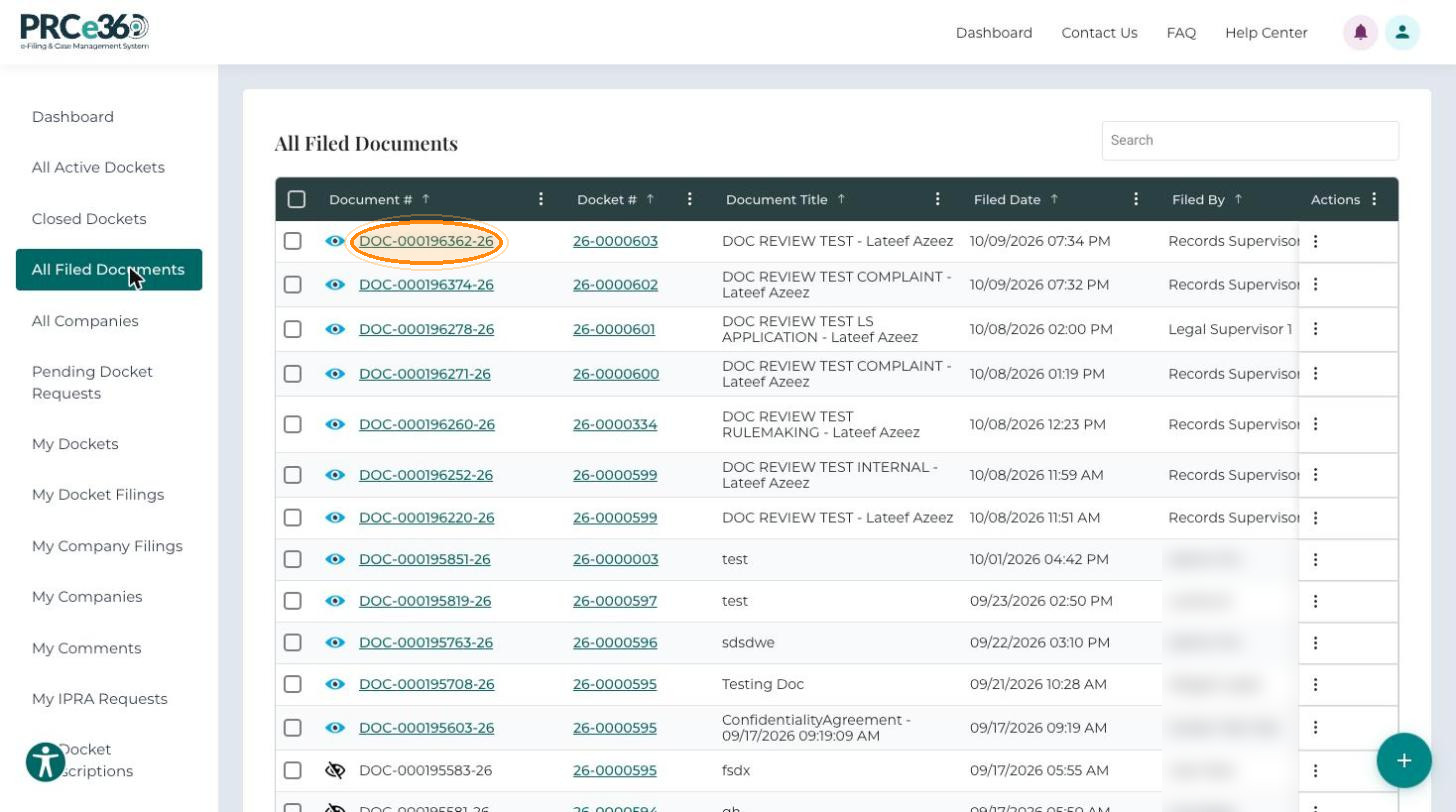
Click a Document # to open the document. In the document viewer, use the download or print button to save or print the file. To view a document without leaving the list, click the eye icon next to its number.
A document with a crossed-out eye icon is private and cannot be viewed. Its Document # is not a link.
More Details
-
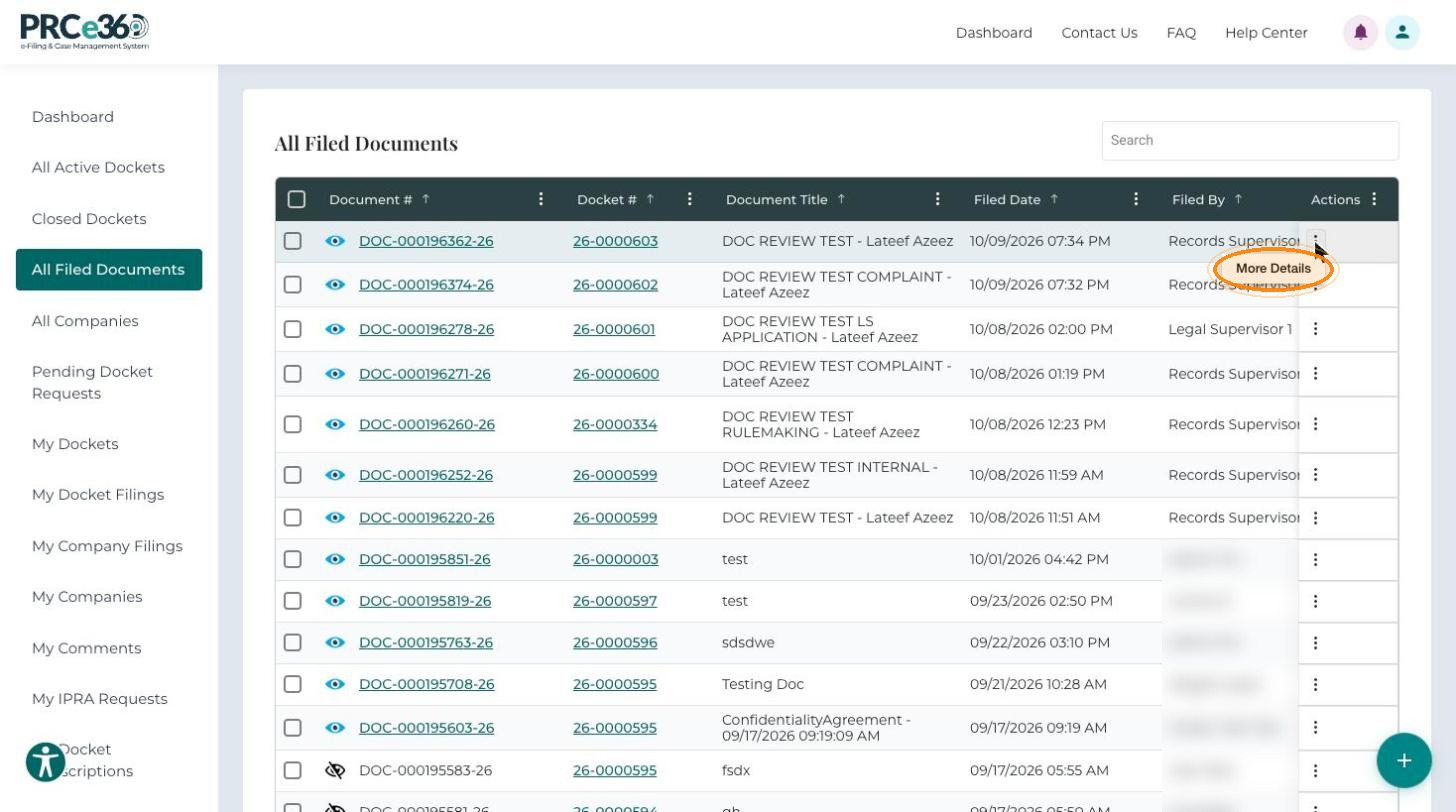
In the Actions column, click the three-dot menu and select More Details.
-
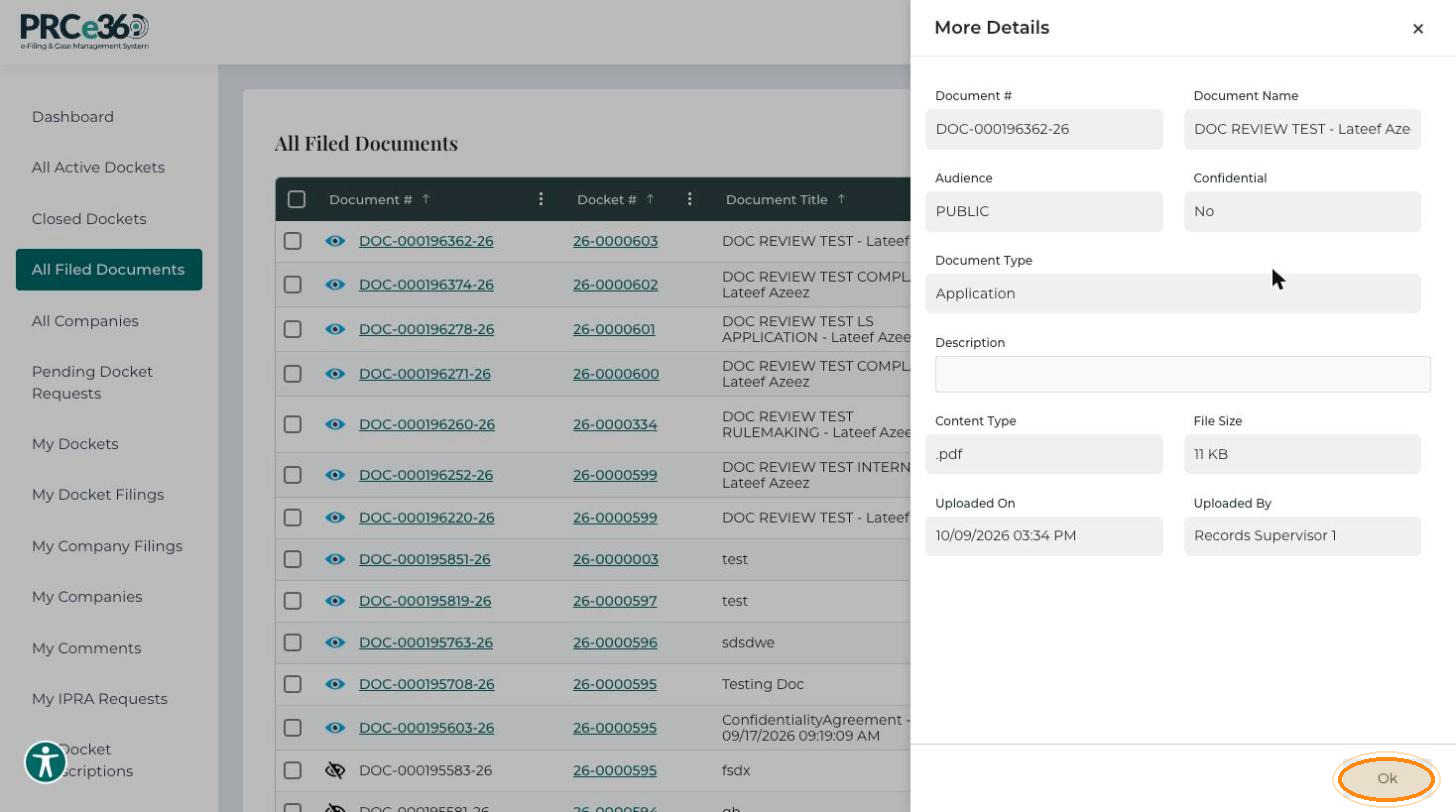
A side panel opens with the document's Document #, Document Name, Audience, Confidential, Document Type, Description, Content Type, File Size, Uploaded On and Uploaded By. Click Ok to close it.
All Companies
-
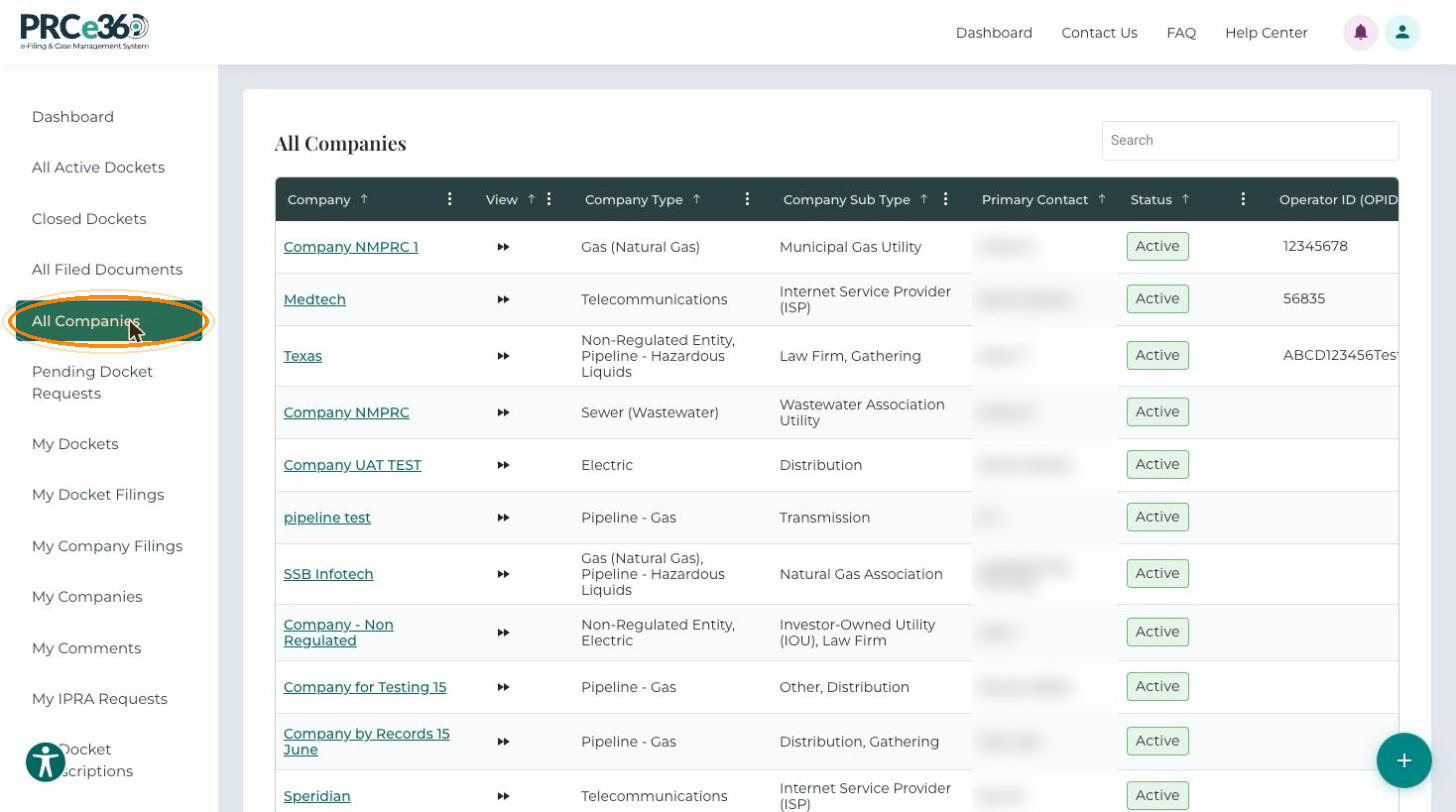
In the left menu, click All Companies. The list shows all registered companies.
Columns- Company
- View
- Company Type
- Company Sub Type
- Primary Contact
- Status
- Operator ID (OPID)
-
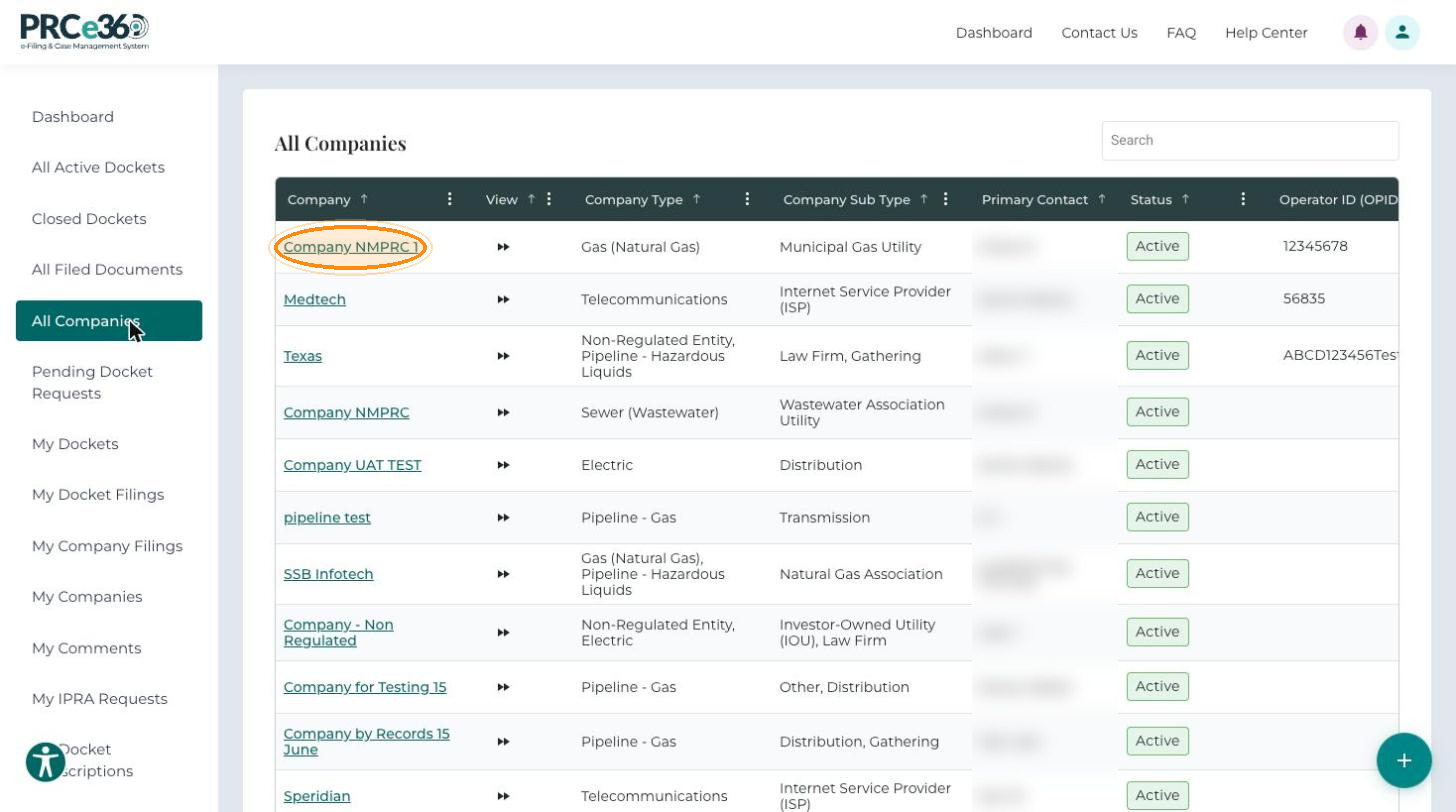
Click a company name to open it in Company 360.
Company 360
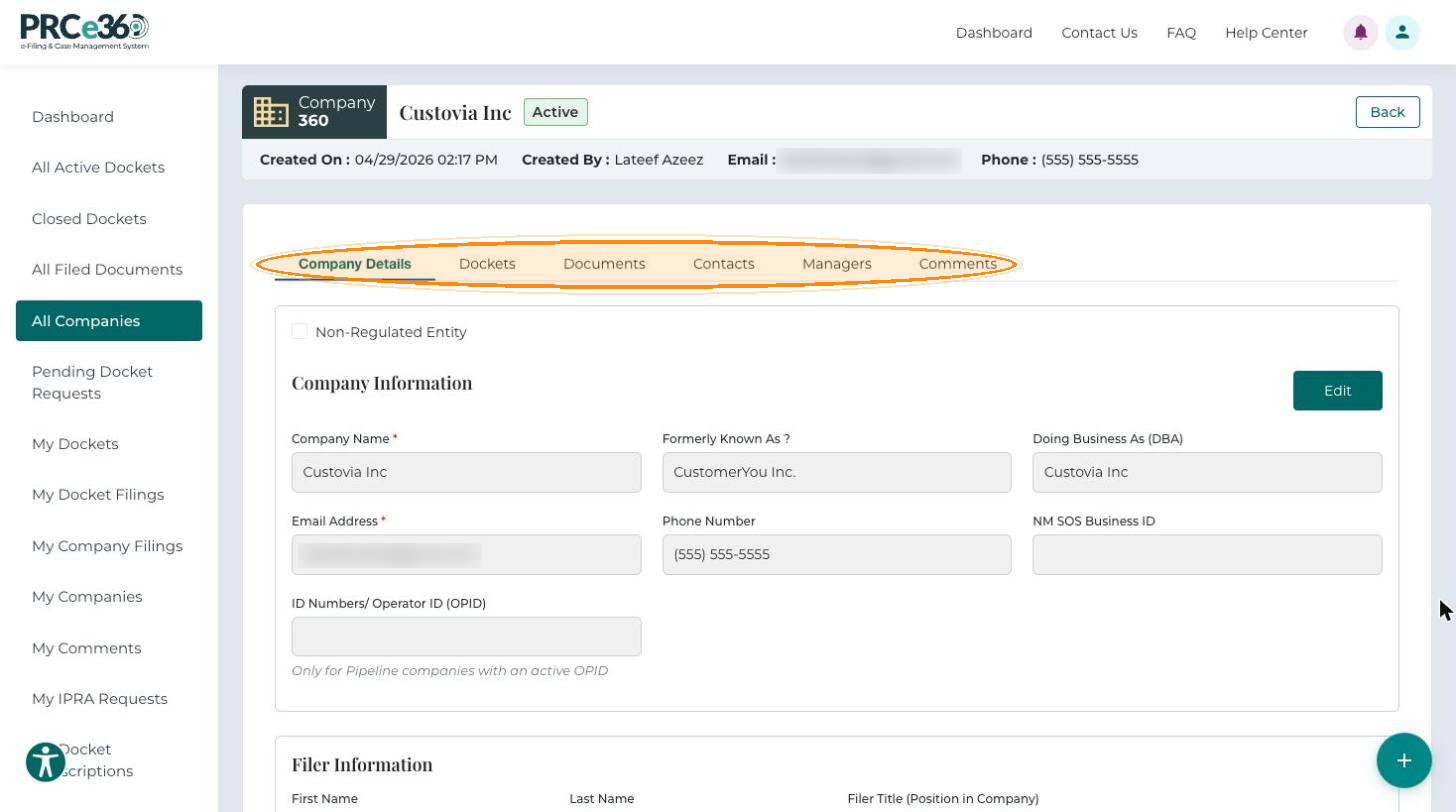
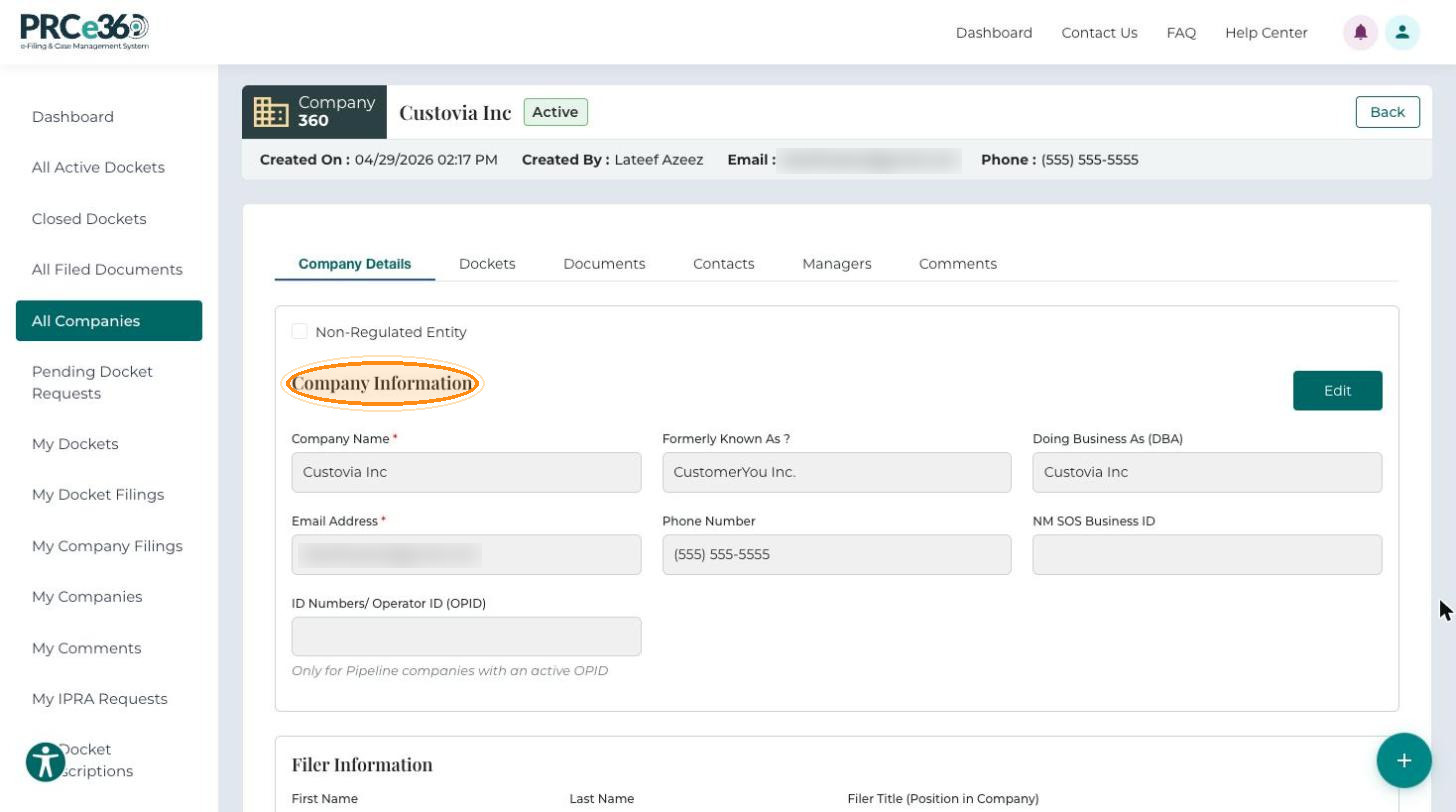
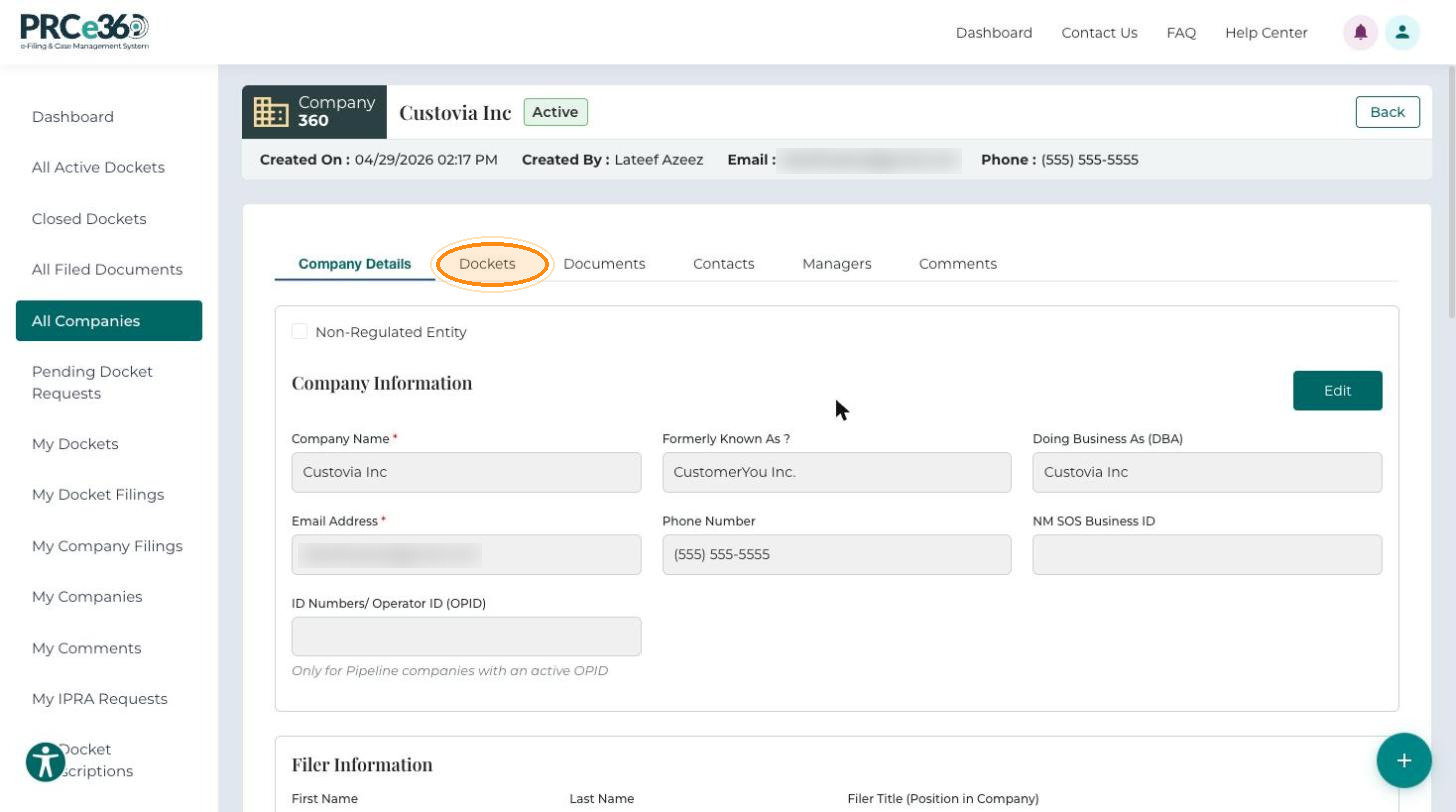
The header shows the company name, its status, Created On, Created By, Email and Phone. Click Back to return to the list. Below the header are the Company Details, Dockets, Documents, Contacts, Managers and Comments tabs.
Company Details
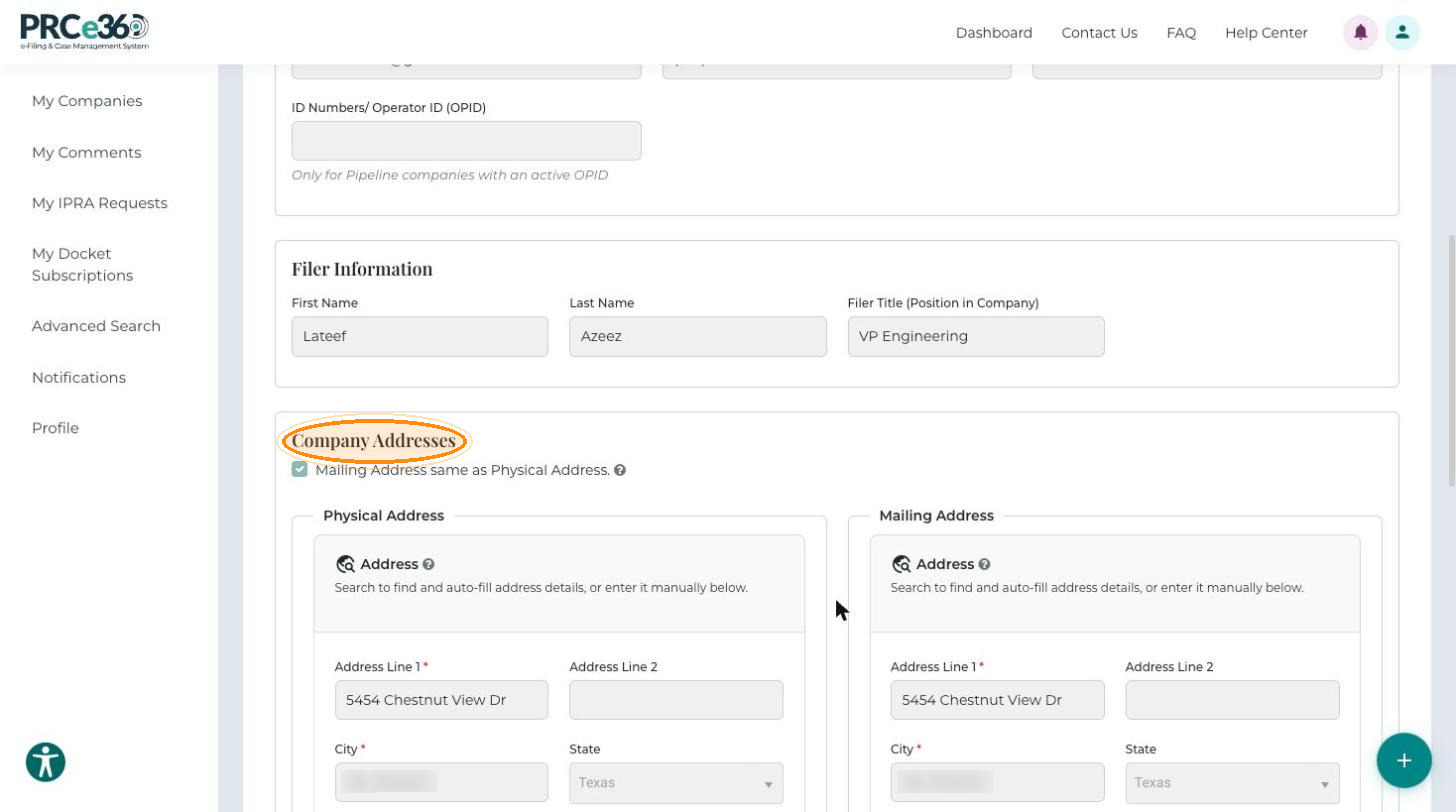
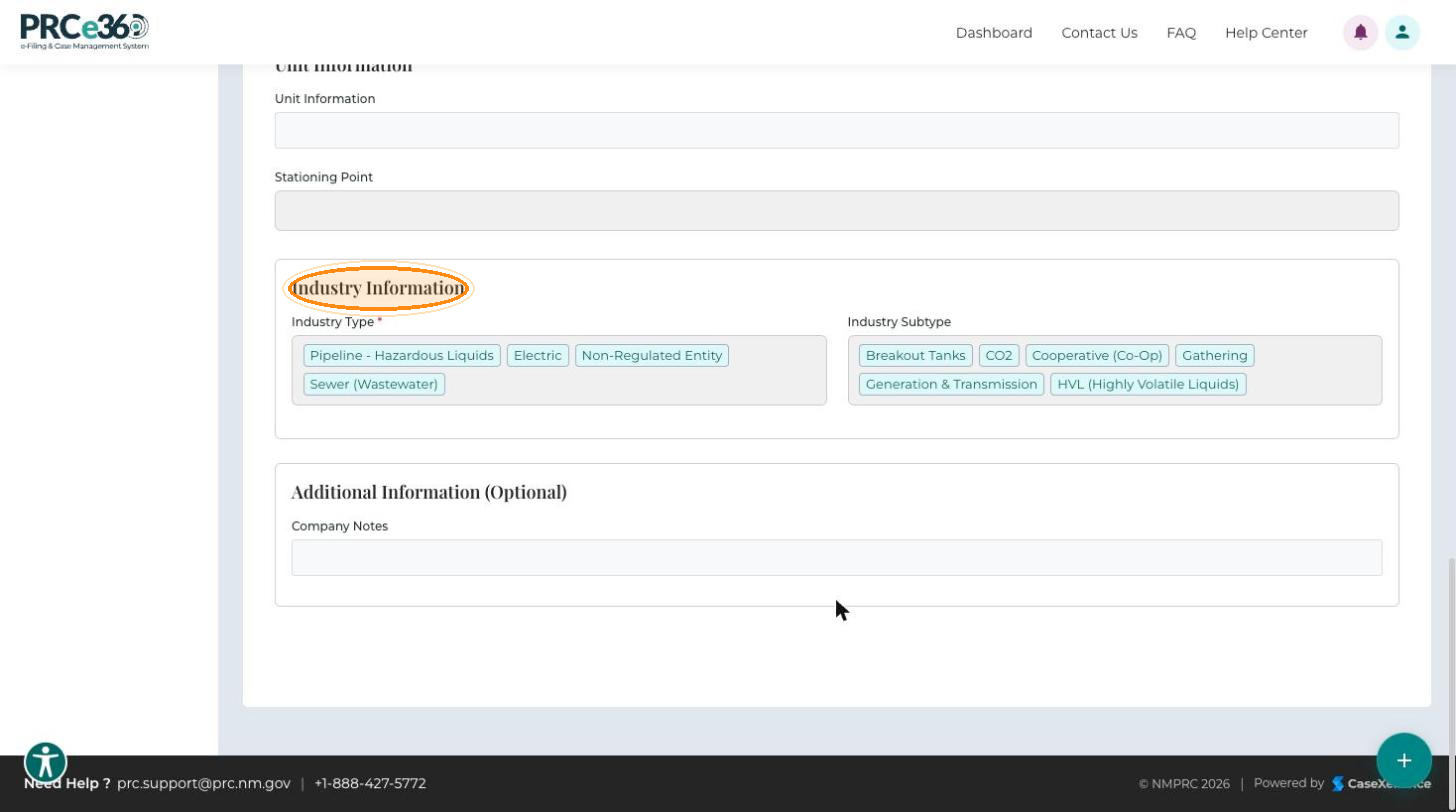
The Company Details tab has these sections:
- Non-Regulated Entity – checked when the company is not regulated by the PRC.
- Company Information – Company Name, Formerly Known As, Doing Business As (DBA), Email Address, Phone Number, NM SOS Business ID and ID Numbers/ Operator ID (OPID) (only for pipeline companies with an active OPID).
- Filer Information – the person who registered the company and their Filer Title (Position in Company).
- Company Addresses – the Physical Address and the Mailing Address, or a checked Mailing Address same as Physical Address.
- Unit Information – Unit Information and Stationing Point.
- Industry Information – the Industry Type and Industry Subtype.
- Additional Information (Optional) – Company Notes.
If you manage the company, an Edit button appears in the Company Information section so you can update the details.
Dockets
The Dockets tab lists all dockets filed by the company. Click a Docket # to open the docket in Docket 360.
- Docket #
- View
- Docket Type
- Filer Name
- Source of Request
- Assigned Users
- Status
- Submitted On
- Submitted By
Documents
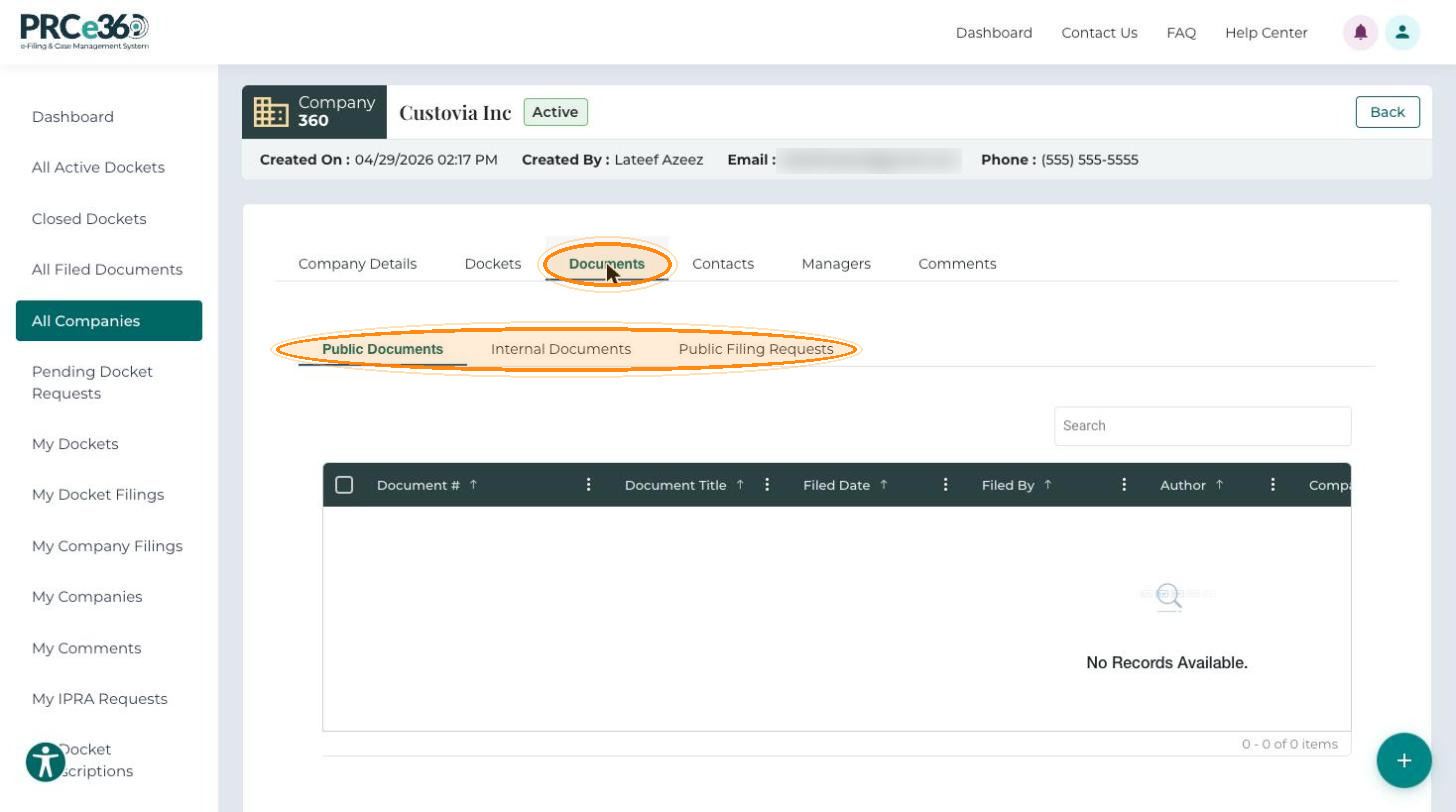
The Documents tab has three sub-tabs: Public Documents, Internal Documents and Public Filing Requests.
- Document #
- Document Title
- Filed Date
- Filed By
- Author
- Company/Party(ies)
- Document Type
- Document Description
- Source
Contacts
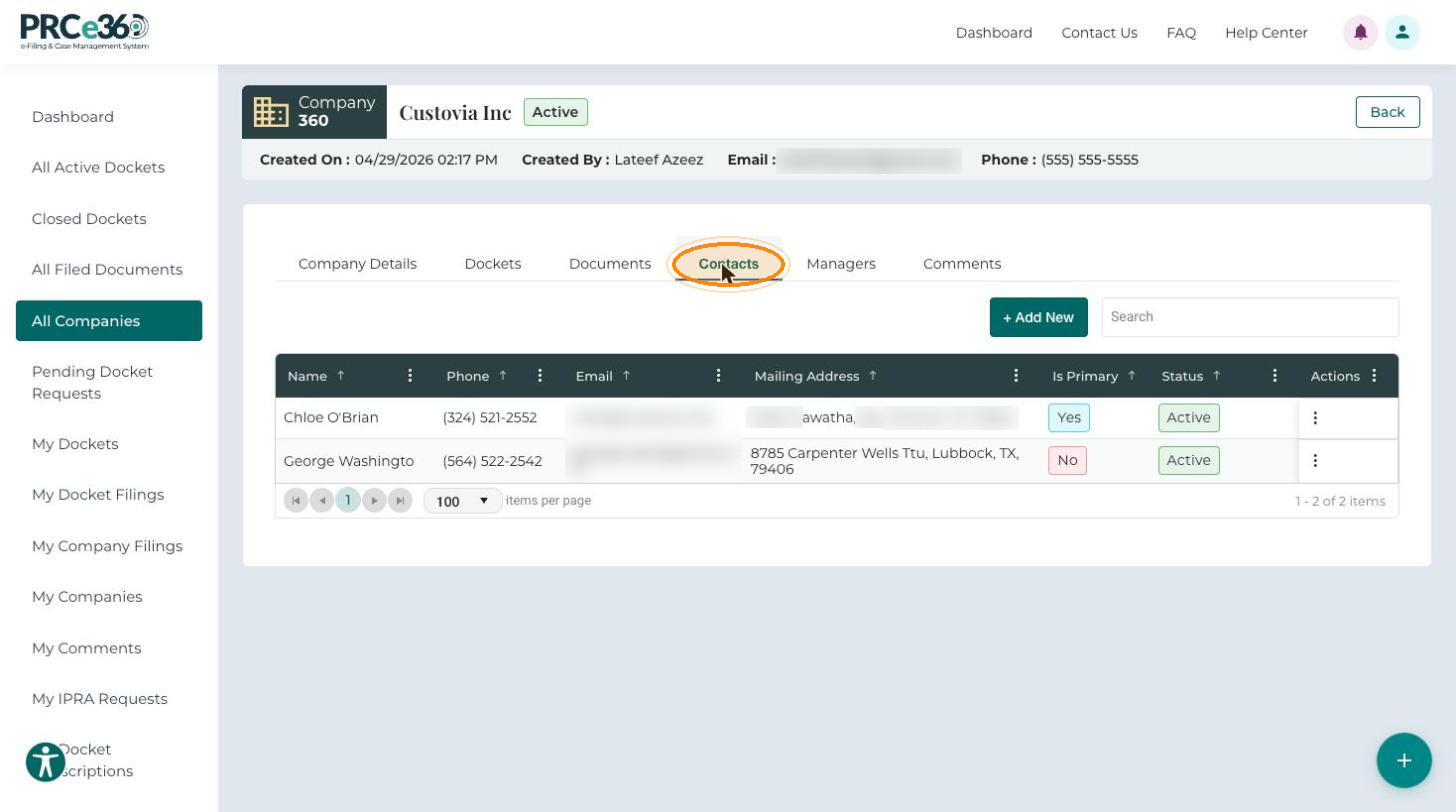
The Contacts tab lists all contacts added to the company. Is Primary shows which contact is the company's primary contact.
- Name
- Phone
- Mailing Address
- Is Primary
- Status
- Actions
To add a contact:
-
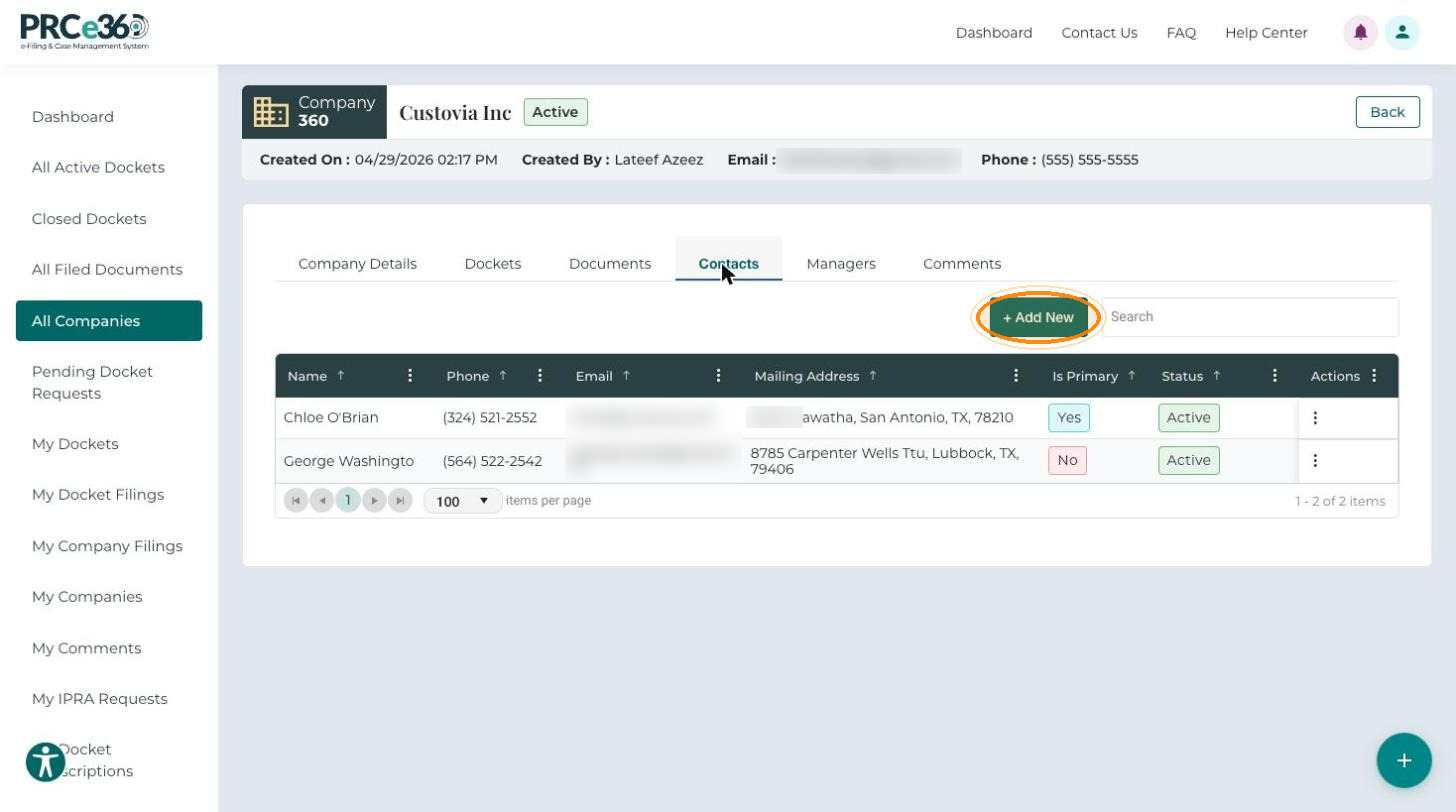
Click + Add New.
-
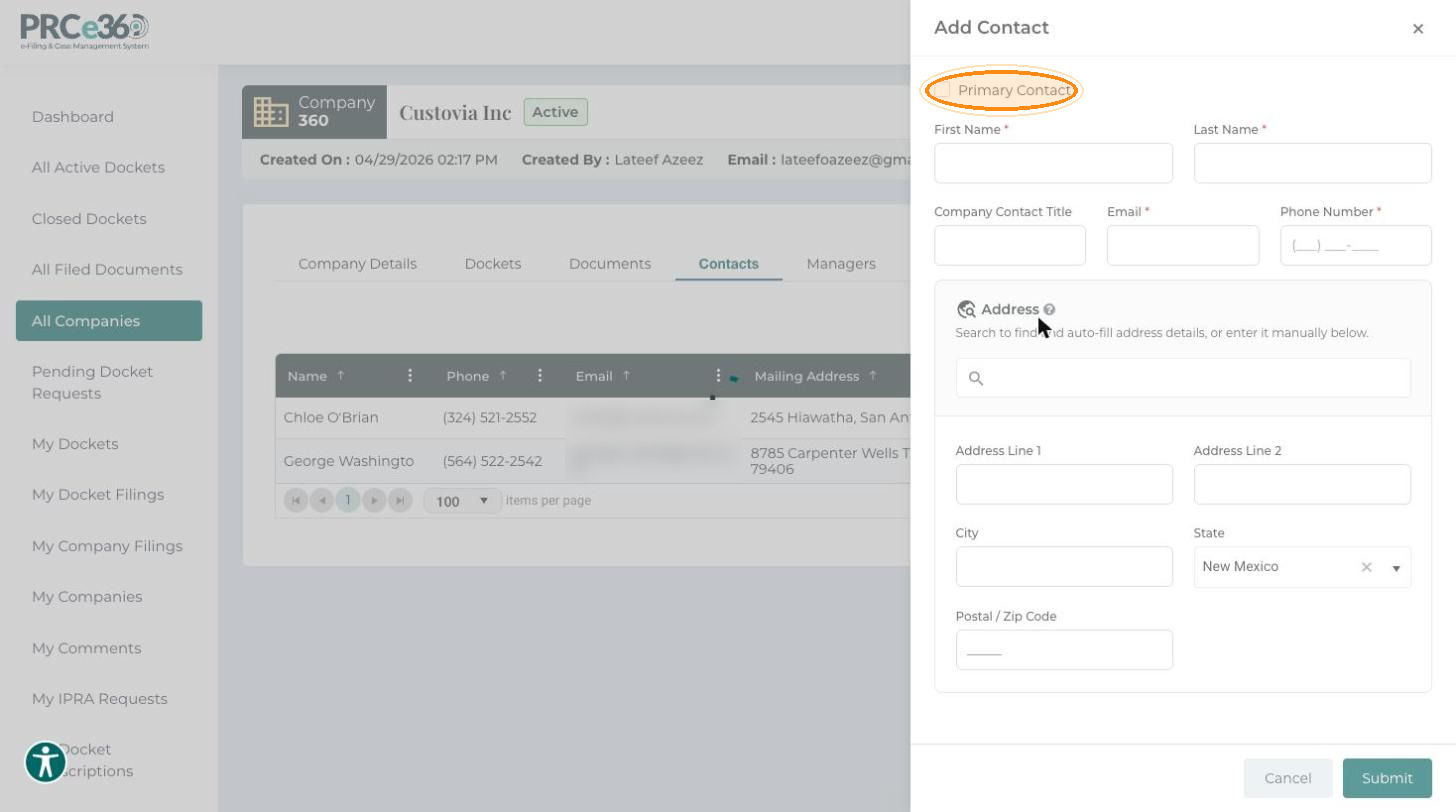
In the Add Contact panel, enter First Name, Last Name, Email and Phone Number. Company Contact Title and the address are optional. Select Primary Contact to make this the company's primary contact.
-
Click Submit.
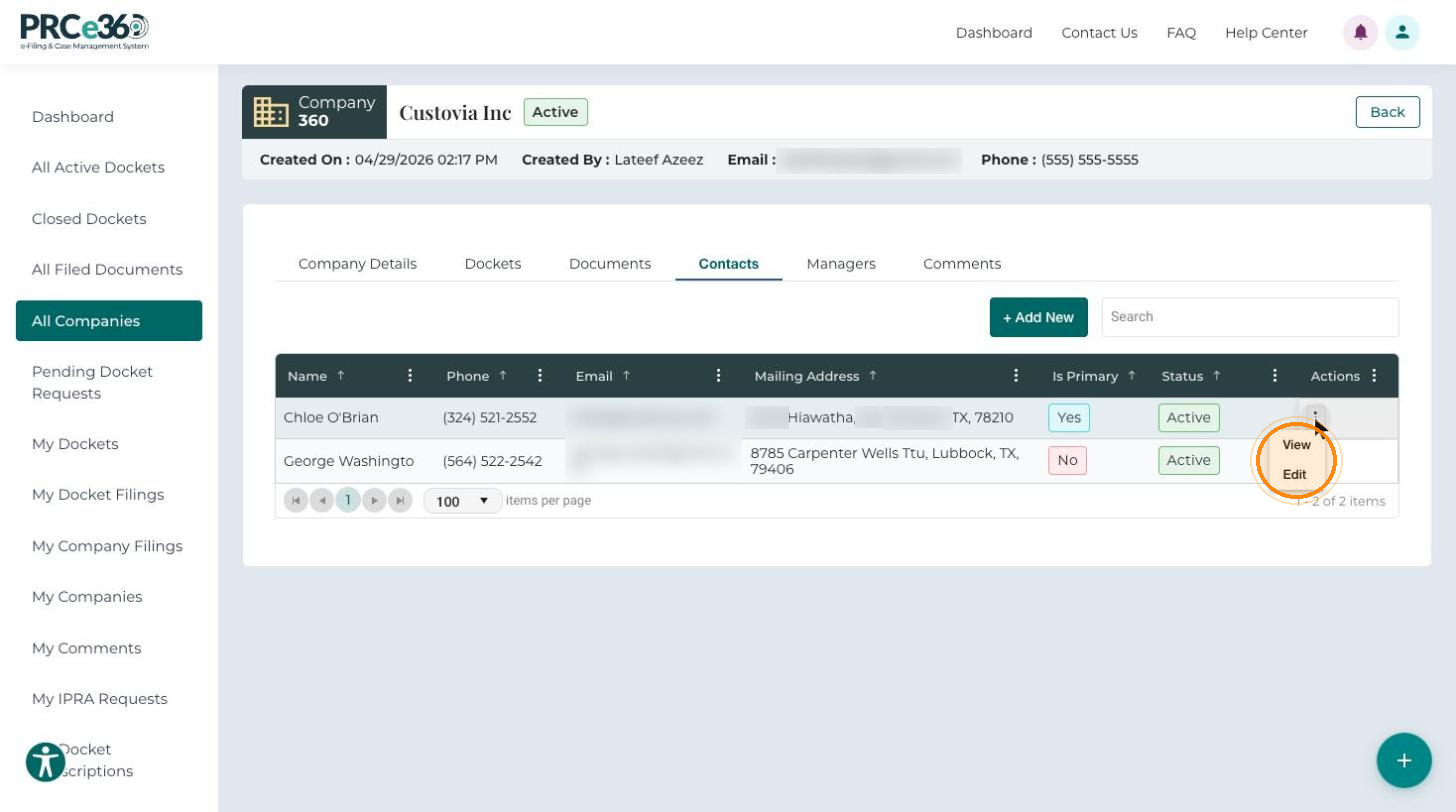
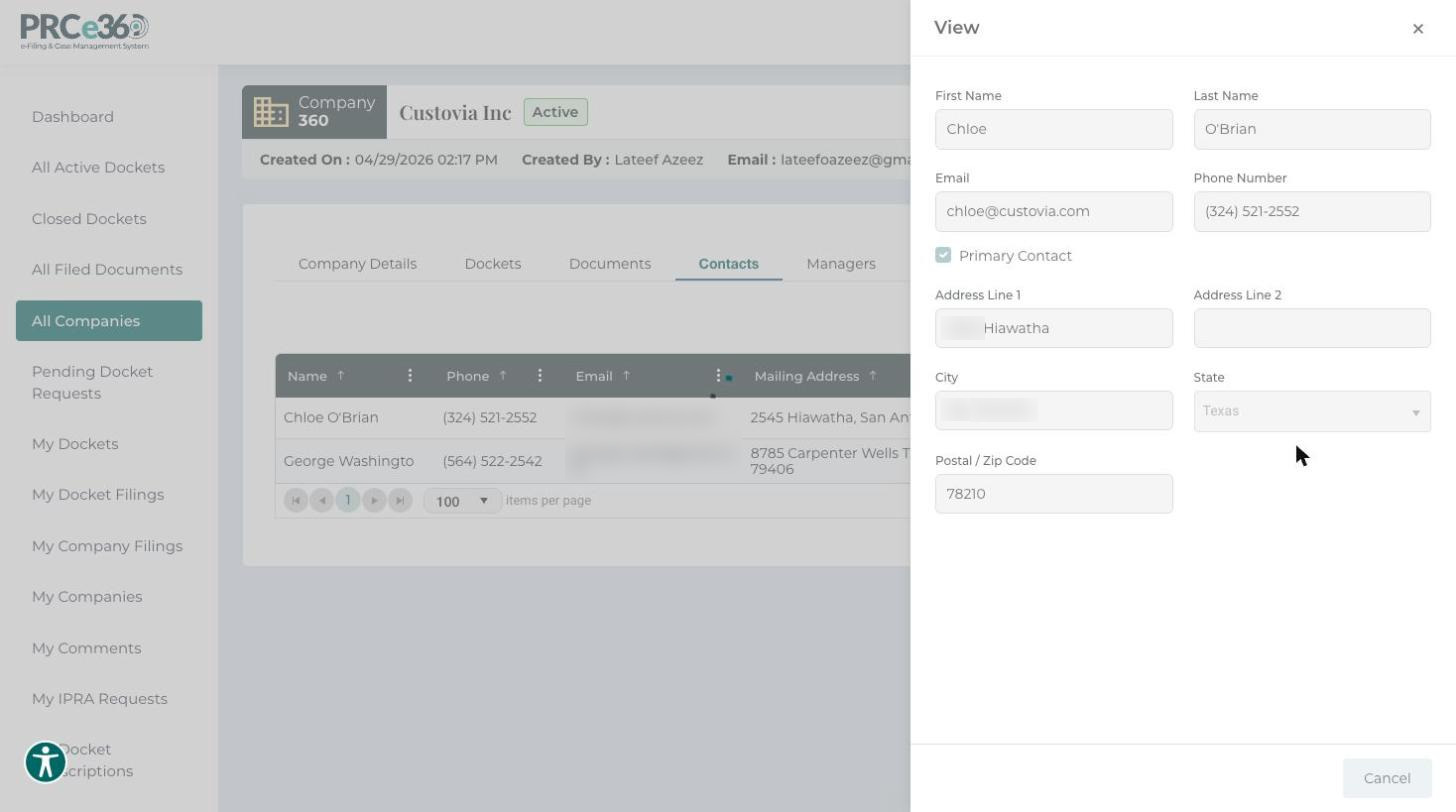
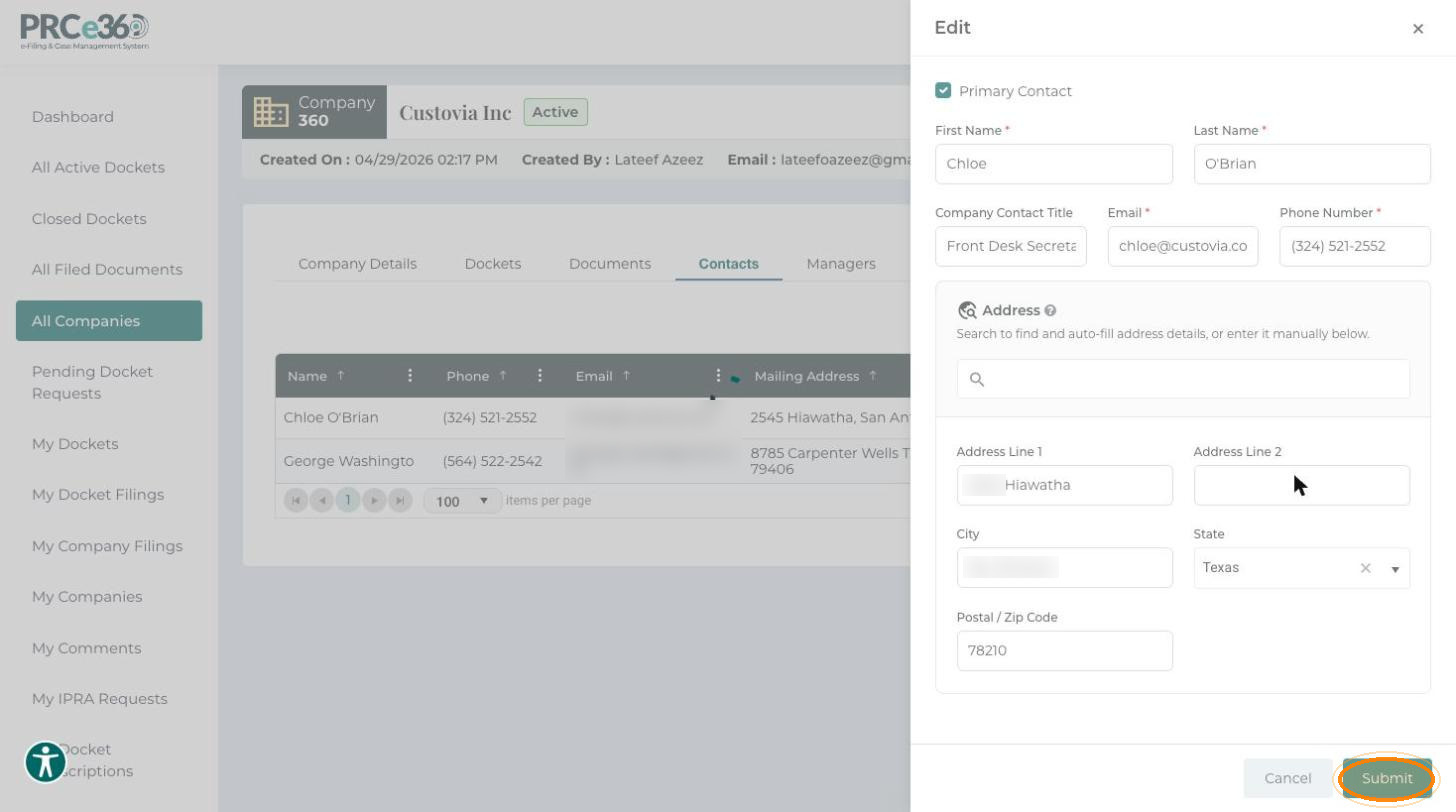
To view or edit a contact, click the three-dot menu in the Actions column and choose an option:
-
View – opens a read-only side panel with the contact's details.
-
Edit – opens a side panel where you can change the contact's details, including Primary Contact. Click Submit to save.
Managers
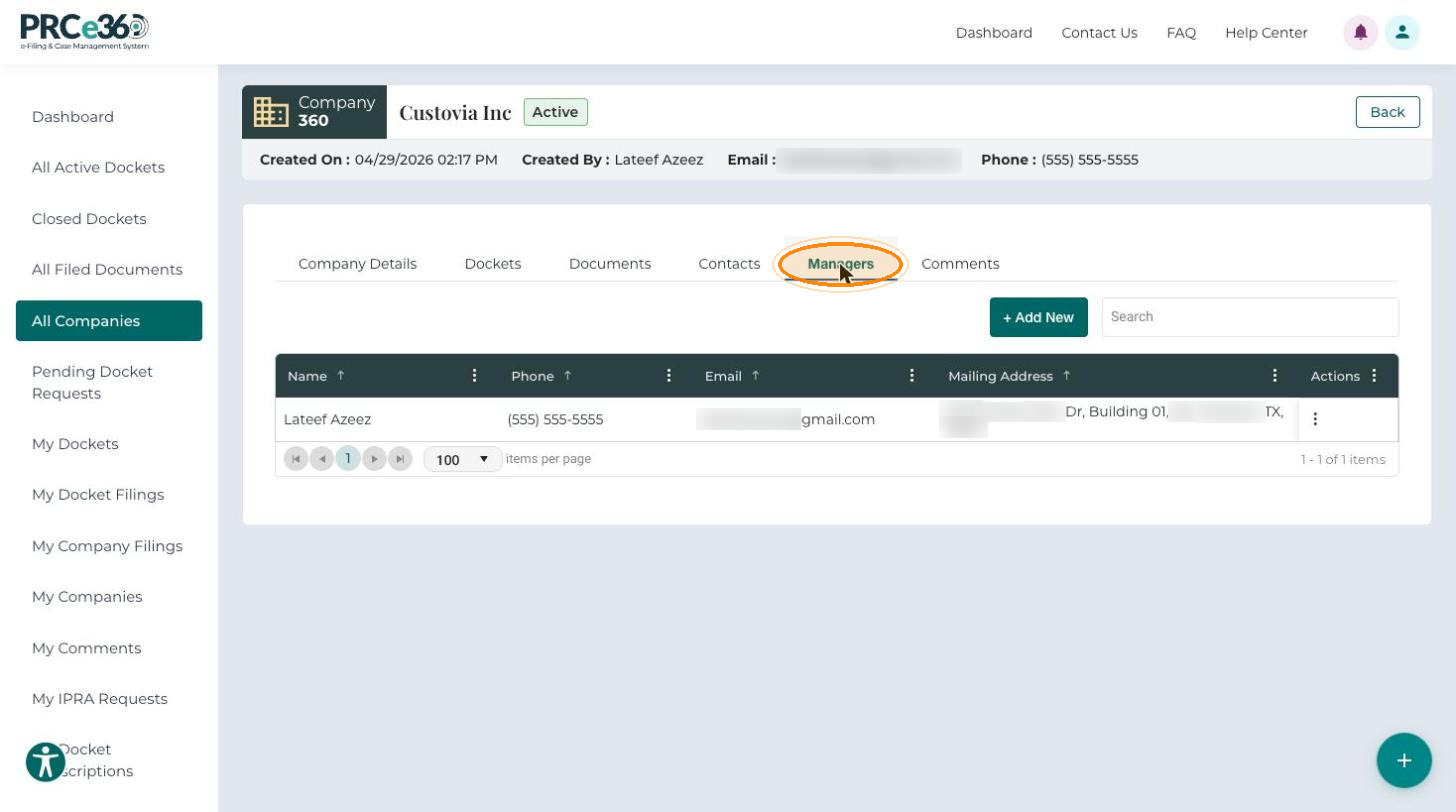
The Managers tab lists all users with management access to the company.
- Name
- Phone
- Mailing Address
- Actions
If you manage the company, you can add another manager:
- Click + Add New.
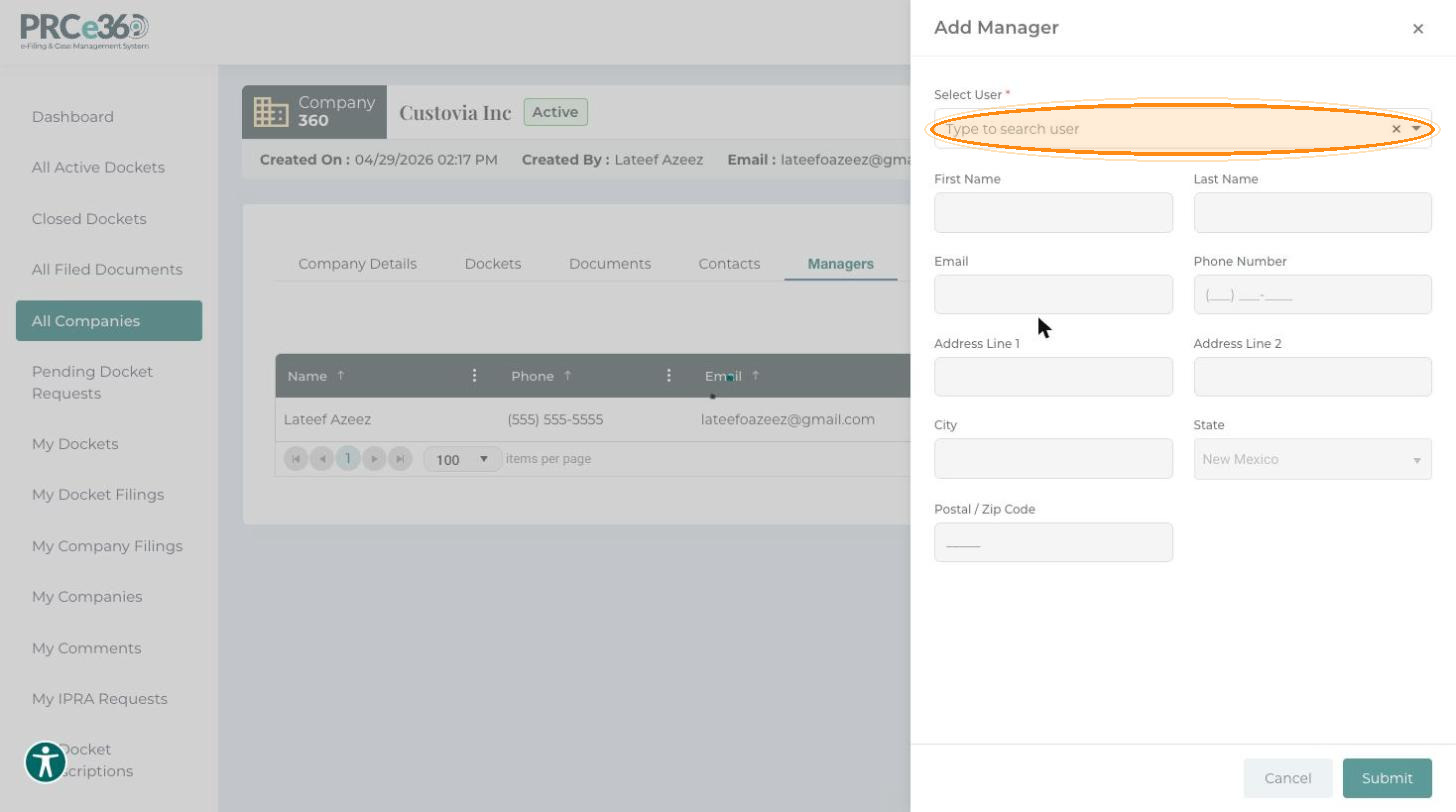
- In the Add Manager panel, type in Select User to find the user. Their name, email, phone number and address are filled in.
- Click Submit.
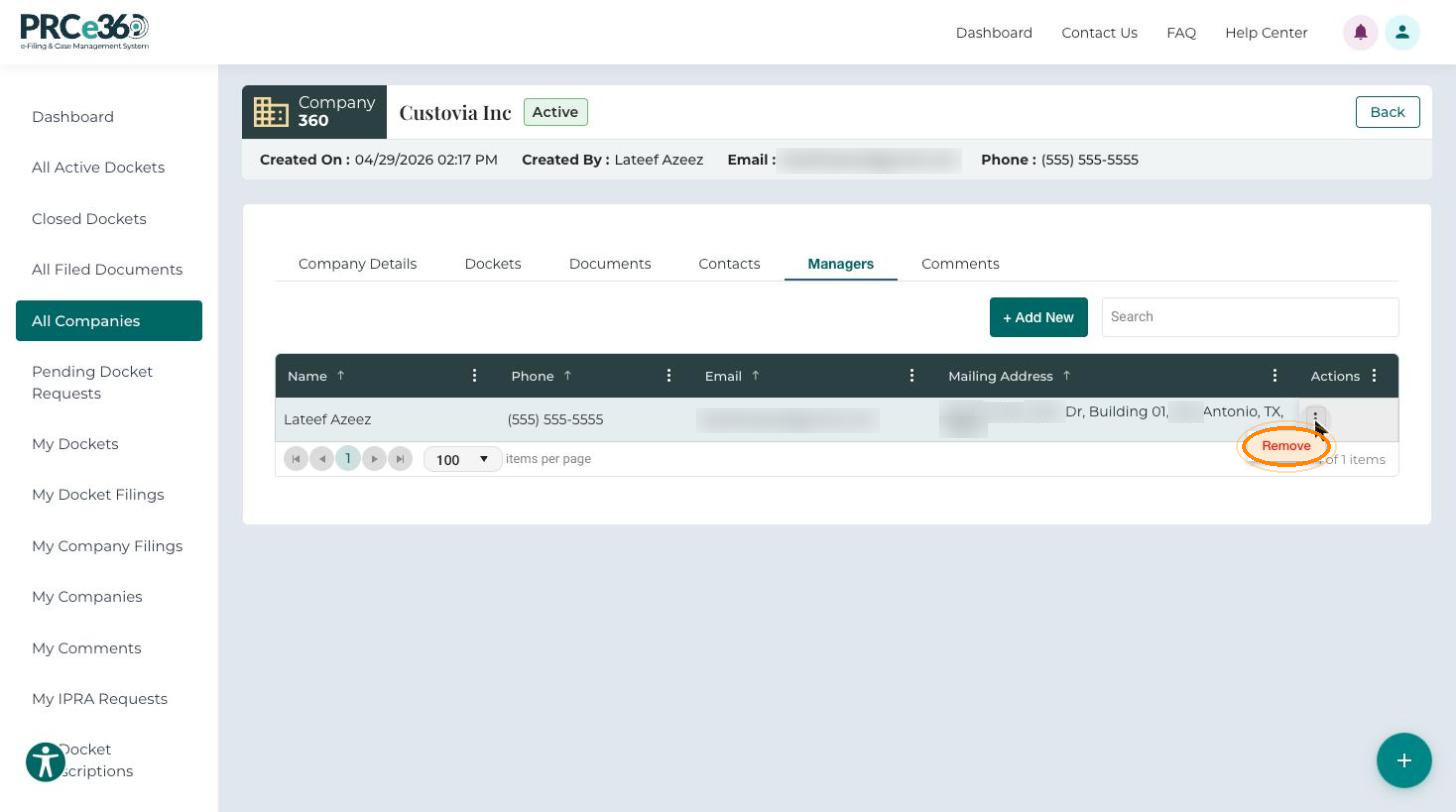
To remove a manager, click the three-dot menu in the Actions column and select Remove.
Comments
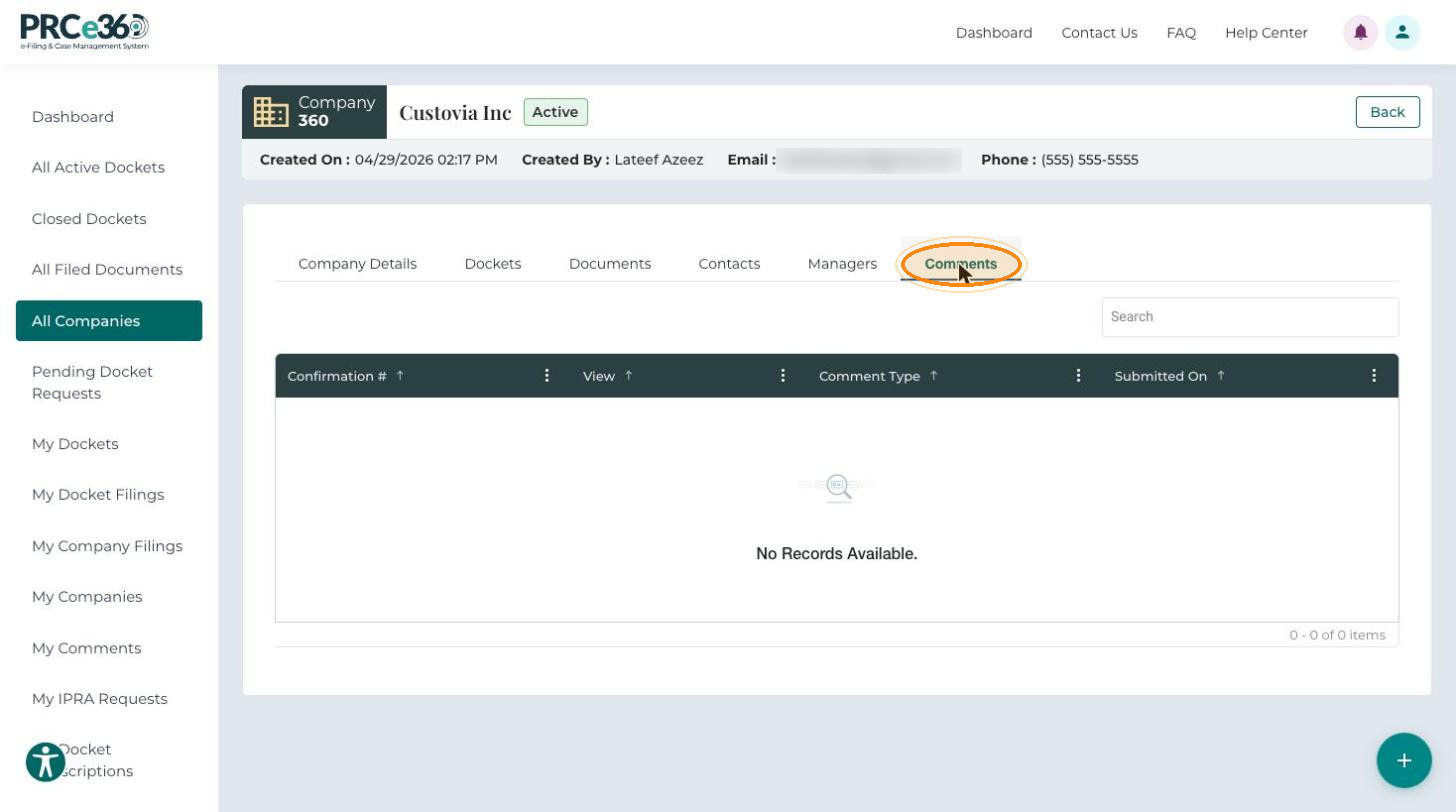
The Comments tab lists all comments submitted for the company.
- Confirmation #
- View
- Comment Type
- Submitted On